Bejeweled 3 crashes on startup
I just tested with 3.7-8 and it worked.
Add PROTON_USE_WINED3D=1 %command% to launch options with Proton 3.16-4 Beta & the game will work again.
That made it run, but I notice frame skips while playing. Nothing that ruins the gameplay, but I notice missed frames.
Possibly a DXVK regression. Cc @doitsujin .
@sakuramboo can you try DXVK_NO_VR=1 %command% w/o the wined3d workaround?
@Guy1524 Using just DXVK_NO_VR=1 %command% it still crashes for me.
Log
steam-78000.log
I use PROTON_NO_D3D11=1 %command% Seems to work fine.
Bejeweled 3 no longer starts with the latest version of Steam. I tried Proton 3.7-8 up to 5.13-5 and Proton Experimental with and without PROTON_NO_D3D11=1 %command% and PROTON_USE_WINED3D=1 %command%. The game starts when ran from Protontricks > Run Explorer > Bejeweled 3.exe.
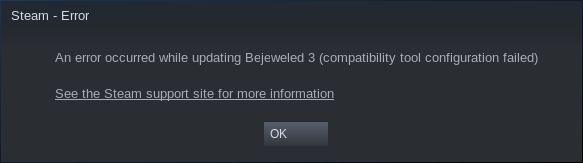
Hey @IanTrudel, Bejeweled 3 is working for me with Proton 5.13 out of the box with no special configuration. That error looks like some kind of problem with your Proton installation or Steam client configuration. Can you use the Steam client to validate the local files for the relevant Proton installations? You could also try enabling/disabling Steam Play in the Steam client settings, or changing the relevant settings, and restarting the Steam client.
Thank you for the follow-up, @aeikum ! This is an interesting situation because it does work with Proton 5.13-6 but only when I specify it in the compatibility tab from the game. However, Steam Play settings are having Proton 5.13-6 by default, which is not working for this particular title.
@IanTrudel
Similar issue for few months game stopped launching from steam across multiple steam client updates.
I just got a new update today and still failed.
I tried all the combinations of env vars mentioned above.
Removed them all and then tried all Proton versions from most recent to oldest.
Success! Proton 3.7-8 without any launch options.
I'm on XUbuntu 20.04 (upgraded from 18.04 several months before this issue arose--that was a nightmare)
Until now, as a workaround I was able to launch the game from the command line env vars and wine command but, this was not Steam save game aware:
`Refs:
https://www.reddit.com/r/SteamPlay/comments/9atr2r/how_do_i_use_proton_via_the_command_line_on_linux/
-
Determine STEAM GAME ID:
Right click game in Library >> Properties >> Updates:
"App ID" -
Using Bejeweled 3 as an example, drop to shell in home directory:
APP_ID=78000
export WINE="${HOME}/.steam/steam/steamapps/common/Proton 3.16/dist"
export WINEVERPATH=$WINE
export PATH=$WINE/bin:$PATH
export WINESERVER=$WINE/bin/wineserver
export WINELOADER=$WINE/bin/wine
export WINEDLLPATH=$WINE/lib/wine/fakedlls
export LD_LIBRARY_PATH="$WINE/lib:$LD_LIBRARY_PATH"
export WINEPREFIX=~/.steam/steam/steamapps/compatdata/${APP_ID}/pfx
- Launch your game from command line in your home directory:
wine ".steam/steam/steamapps/common/Bejeweled 3/Bejeweled3.exe"`
Bejeweled claims that deck has outdated drivers. After clicking 'yes' the game restarts but in the settings nothing changed.
You have to run the ancient Proton 3.16. It's the only one that works.
7.0-6 as recommended by Valve straight out refuses to let me off of the lowest resolution saying "3D acceleration is not enabled" when running it on the Deck.
Have you tried PROTON_USE_WINED3D=1 %command% in the launch options? This is the only way I can get 3D acceleration working on PC. Hopefully, it works on Steam Deck as well.
Ah. On my PC I was using Proton Experimental. Now that I forced Experimental on the Deck, 3D acceleration works on it as well.
Proton versions
proton experimentalx2 2023-05proton 3.16x2 2023-05proton 3.7-8x2 2021-10proton 5.13-6x1 2021-02proton 5.13x1 2021-02proton 3.16-4x1 2018-11
Launch options
PROTON_USE_WINED3D=1x3 2023-05WINEPREFIX=~/.steam/steam/steamapps/compatdata/${APP_ID}/pfxx1 2021-10PROTON_NO_D3D11=1x2 2021-02DXVK_NO_VR=1x2 2018-12PROTON_LOGx1 2018-11
Launch lines
PROTON_USE_WINED3D=1 %command%x3 2023-05PROTON_NO_D3D11=1 %command%x2 2021-02DXVK_NO_VR=1 %command%x2 2018-12
Compatibility Report
System Information
I confirm:
PROTON_LOG:
https://gist.github.com/sakuramboo/052c721b603e89e2f164fdc46280dd27
Symptoms: Game crashes when I hit "play."
Reproduction: Hit "Play" and watch it crash.