Open Prefix Button
Additionally, giving the ability to open the workshop data/savegame folder would be nice
Definitely need this feature as it's annoying to find the game's steamID
I think a "reset prefix" button would be useful too
+1 to having external/alternate disk drives automatically create symlink compatdata to USER/.steam/steam/steamapps/compatdata folder.
Just have steam auto check these links on load to ensure they didn't break. I've had mine break several times now and it results in all games failing to run.
This certainly hurts proton plug and play experience for new users that don't have all their games on the main Linux partition (who actually does this? it seems insane to me!).
@jarrard I do that with a game at a time because I have a very small SSD partition set aside for that, which is of course faster than my HDD.
And that's exactly why, if what you're suggesting happened (and it's not a bad idea), then I'd need an option to switch that feature off too. Putting the compatdata in the SSD too can make a big difference with some games.
Putting the compatdata in the SSD too can make a big difference with some games.
I assume that is a EXT4/BTRFS SSD?
Most the compatdata and proton install folder related issues stem from people using NTFS still; like me I still boot into Win10 for anticheat or compatibility reasons from time to time, also I do testing under win10. LOADS of reasons why people may not be willing to 100% go LInux.
Steam-for-linux being NTFS aware I think is probably a simple fix. If detect NTFS, check file permissions, check compatdata locations, prevent proton installing/running from NTFS drives... stuff like that. This way people in your situation need do nothing!
Unfortunately my QOL (Quality Of Life) suggestions are often met with hostility by the Linux community who generally boo me for still having windows installed... :(
@jarrard Haha, it's alright--I still have Windows installed too. But the only time I don't use it as a VM by passing through a GPU is when that stops working, which means 100% of its games installed are always games that I already tried and failed to run in wine/proton (literally only like 2-3 of those nowadays, thanks Valve). So I never have a reason to play games on an NTFS drive from Linux.
It would be highly appreciated if this we could open the prefix from the menu so that we don't need to look up the appid every time. Something along the lines of this mockup
EDIT: Probably should extend the word "compatibility" to its full length so that it's not too confusing.
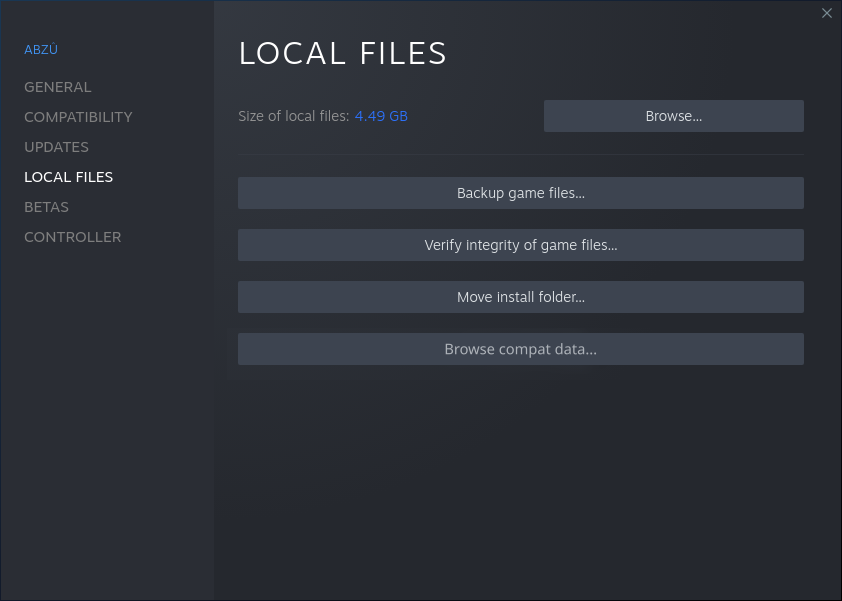
Yes please! Right now I have 150+ games installed that are supported by Proton & that would simply things a great deal.
Why you want to browse compat data? wouldn't wipe compat data folder be more useful?
Under windows people must figure out where their save and config files go; no different here. Loads of people however may not realise that if you don't wipe your compat data before changing to a more up to date proton, bad things can happen due to compatibility differences in the container (wine).
Skyrim saves most important settings in the prefix, so wiping it would lead to the game being back to default, a huge problem if, like me, you play it with 250+ mods installed.
ps when you (me) have 150+ games installed that Proton supports it gets hard to remember which prefix goes with which game, so the button would be Very useful.
I generally just use MO2 which has a function of injecting and saving configs elsewhere. But that's me, I know allot of people do it manually (painful) or vortex (not a fan). Yeah I know getting MO2 running perfectly can be a little tricky for beginners using wine/proton.
@jarrard You might want to detail your process somewhere. I'm far from a beginner on proton, and VERY VERY VERY far from a beginner on wine, and I still haven't managed to get an MO2 setup going on proton. Granted, I probably was a beginner the last time I tried. But if there's been some breakthrough that makes it way easier / possible without being painfully hacky, then I haven't heard of it yet or seen it anywhere Googling.
Anyway, I have to browse my compat folder for certain games all the time, not only due to modding but also INI settings, save files, etc. It's really not that weird to do that often--there are plenty of reasons. It's weird NOT to be doing that often if you ever mod your proton games. A button, please, would make things so much better. Right now the workflow is actually significantly harder and more painful than it ever was back in the old days on Windows or non-proton WINE, because there are the added steps of having to browse through several folders just to get to Steam's root in the first place, and then you have to either memorize the appid of the games you're doing this with or look them up over and over and over again.
You might want to detail your process somewhere.
Wrong place. Goto MO2 for more details or help.
I only mentioned it to say that's what I use and it more or less works. Unfortunately modding is rarely straight forward under Linux when you need to use APPs under Wine/Proton which has never been friendly towards windows apps due to all the funny .NET stuff that goes on. (and others)
Today I was particularily annoyed by this. There seems to be no way to know what appid Steam assigns to a non-steam game so finding it out is a complete guessing game
Yeah it be real nice to just have a option called "Open Proton Drive" or something under the Browse... in Installed Files, or in compatibility section. It be even better if it had additional to this Open to save game/config data since each game is different.
Or perhaps just a list of the files the game has assigned to it. Many ways to peel a onion here!
Please add this, many games use folders inside the prefix for save files and sometimes even Mods! It's extremly painful to search the folder everytime or to rely on third party tools to get it.
My 1-liner for cd-ing to a compatdata dir. Requires protontricks and fzf (interactive fuzzy search). Both should be in your distro packages.
cd ~/.local/share/Steam/steamapps/compatdata/$(protontricks -l | grep -P '^.+ \(\d+\)$' | fzf | grep -Po '\(\K\d+(?=\)$)')
I used PCRE (GNU grep -P) because it's easier to read, but if you want BRE (basic regex) for whatever reason:
cd ~/.local/share/Steam/steamapps/compatdata/$(protontricks -l | grep '^.\+ ([[:digit:]]\+)$' | fzf | sed -n 's/^.\+ (\([[:digit:]]\+\))$/\1/p')
You could save either as a shell alias.
protontricks -lprints a list of games and appids in the formatName (appid). This includes non-Steam games.- protontricks output is quite noisy (help text) so the first grep gets the relevant lines
- fzf takes the list, presents an interactive fuzzy search, and outputs the line you select
- final grep/sed gets only the appid
Known issues:
- If you cancel fzf (with Esc or Ctrl-C), you'll cd into
compatdataitself. Consider it a feature :)
There seems to be no way to know what appid Steam assigns to a non-steam game so finding it out is a complete guessing game
Other than protontricks -l, I just search logs after running the non-Steam game. For example if the game is foo.exe:
grep 'Game process added.\+AppID [[:digit:]]\+ .\+proton.\+foo.exe' ~/.local/share/Steam/logs/console_log.txt
Nothing extracted yet.
Your system information
Please describe your issue in as much detail as possible:
When troubleshooting games running through SteamPlay/Proton it is useful to open the prefix said game was installed to (eg: accessing game's crashlog). Perhaps adding a button below "BROWSE LOCAL FILES..." which opens the game's prefix?