DualSense on Linux - Gryo, LED, Rumble Not Working
Could be I'm missing something, but don't think that's it. Steam controller settings shows the trackpad [click] works without udev rules if you go into BPM controller defaults and set something to the trackpad click.
Adding the controller to udev for wired USB same as DualShock 4 but updated for DualSense product id didn't do anything new. Don't see anything else to do there on the user side. It shouldn't require anything more than the DualShock 4.
I'd be surprised if udev was the only thing here especially since it didn't do anything for me in that regard.
So udev rules have been added for the DualSense:
# PS5 DualSense controller over USB hidraw
KERNEL=="hidraw*", ATTRS{idVendor}=="054c", ATTRS{idProduct}=="0ce6", MODE="0660", TAG+="uaccess"

# PS5 DualSense controller over bluetooth hidraw
KERNEL=="hidraw*", KERNELS=="*054C:0CE6*", MODE="0660", TAG+="uaccess"
Added these to 60-steam-input.rules, reloaded the rules, restarted the system, still no vibration or LED color...
Can confirm this on Manjaro.
Using Steam Beta from Nov 20, also added the udev rules and rebooted.
Still no LED, Gyro, Touchpad and Rumble. Both with USB and bluetooth.
So udev rules have been added for the DualSense:
# PS5 DualSense controller over USB hidraw
KERNEL=="hidraw*", ATTRS{idVendor}=="054c", ATTRS{idProduct}=="0ce6", MODE="0660", TAG+="uaccess"

# PS5 DualSense controller over bluetooth hidraw
KERNEL=="hidraw*", KERNELS=="*054C:0CE6*", MODE="0660", TAG+="uaccess"
Added these to
60-steam-input.rules, reloaded the rules, restarted the system, still no vibration or LED color...
That's exactly what I tested. I think its just BPM, etc that doesn't offer these features, though the controller config in Steam doesn't change the light either, but from what I understand they might actually work in games that supports said feature.
Definitely, not yet right in the sense that we expect.
Hello, per "Enabled enhanced functionality for PS5 controllers on Linux (may require steam-devices package update)" and "Fixed LED color changes on PS5 controllers connected over Bluetooth" in the 2020-11-24 Steam client beta update, please retest this issue.
Can now confirm LEDs are working, as well as rumble and gyro, both through wireless and wired. Thanks a lot!!
Requires the above mentioned changes that the cow-killer mentioned. After that and eg a reboot (or loading the changes probably), the LED color changes and trackpad are definitely working in Steam controller preferences [as of today].
I have nothing known to test rumble and gyro on.
To test the vibration you can simply press Cross on the "Identify" button in Steam BPM in the controller settings menu. As for gyro, just download any FPS, enable PlayStation controller support, then configure the gyro to act as a mouse for the game.
To test the vibration you can simply press
Crosson the "Identify" button in Steam BPM in the controller settings menu. As for gyro, just download any FPS, enable PlayStation controller support, then configure the gyro to act as a mouse for the game.
All that is beyond my simple use lol.
Thanks for pointing it out. Very interesting and unexpectedly never seen stuff for me.
Edit: tested all as working.
After today everything works, however is there a better way to test gyro than the aforementioned?
EDIT: Is it normal for the touchpad to move the mouse with inertia? It doesn't feel like a laptop at all, it feels more like a touchscreen smartphone.
Games in Proton can't recognize the controller as gamepad. It does work if emulate WASD and Mouse, though 'd like it to imitate Xbox controller.
@Settyness
Is it normal for the touchpad to move the mouse with inertia? It doesn't feel like a laptop at all, it feels more like a touchscreen smartphone.
The feature is called trackball mode. You can adjust inertia or disable it in game's controller configuration for touchpad.
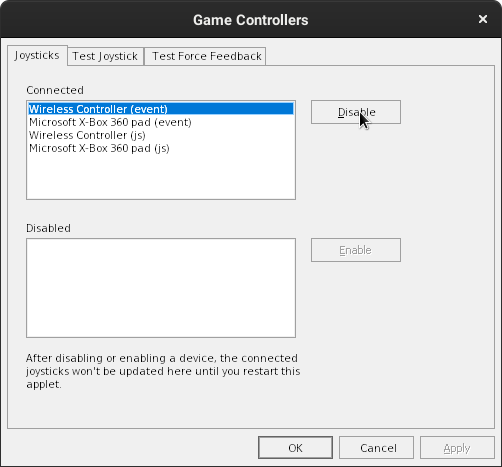
Figured out. It's two devices appearing as separate controllers in wine: "Wireless Controller" and "Microsoft X-box 360 pad". All inputs are translated to virtual xbox pad and wireless controller stands still. Most games expect inputs from first one and have no effect.
Solution:
- Open wine control panel for game prefix ex.
WINEPREFIX=/home/xdshot/.steam/steam/steamapps/compatdata/227780/pfx wine control - Open Game Controllers
- Disable Wireless Controller, both js and event.
is there a better way to test gyro than the aforementioned?
You can configure the controller's settings while using the desktop; in Steam BPM Settings, under Controller, select Base Configuration. Select Desktop configuration, then you can configure the gyro to use the mouse or the like. The gyro feature is selected where the mute button is on the controller layout.
Thanks, ya'll. Confirm that gyro is working now. And was able to remove inertia from the mouse inputs.
In-game custom LEDs no longer work.
In-game custom LEDs no longer work.
Sounds like a good excuse to use my program ;-)
In-game custom LEDs no longer work.
Sounds like a good excuse to use my program ;-)
I'm implementing LED interactive support in my game using Steamworks
rumble works for me in the controller gui, but not in rocket league.
LED appears working in random conditions in Big Picture mode. Have to restart several times to get it working.
Hi, I'm having some issues with the DS and Steam.
Fist of all, I played 15 hours of Detroit: Become Human with a DS4 and it worked perfectly. I just had to plug it via USB cable and it just worked.
I was expecting a similar exprience with the DS, since full support was announced in November. Unfortunately this is not what I experienced: after being sure that the latest udev rules were loaded, I plugged my new DS and fired up Big Picture. The controller was recognized but only basic input was working on BP (no gyro, LED colors, trackpad, etc).
After some digging I found out that the Settings -> Controller Settings -> PlayStation Configuration Support was not checked. This is pretty strange, since I played with a DS4 before and I am pretty sure I never changed that setting. Anyway, after enabling it, most of the issues with the DS were solved, after going to Base Configurations and selecting the Official configuration for both the Desktop and Big Picture.
Is the user supposed to check the PlayStation Configuration Support manually? Shouldn't this be automatically checked when a Play Station controller is recognized?
Anyway, I still have a pretty annoying issue:
Detroit: Become Human is still recognizing the DS as an XBox controller:
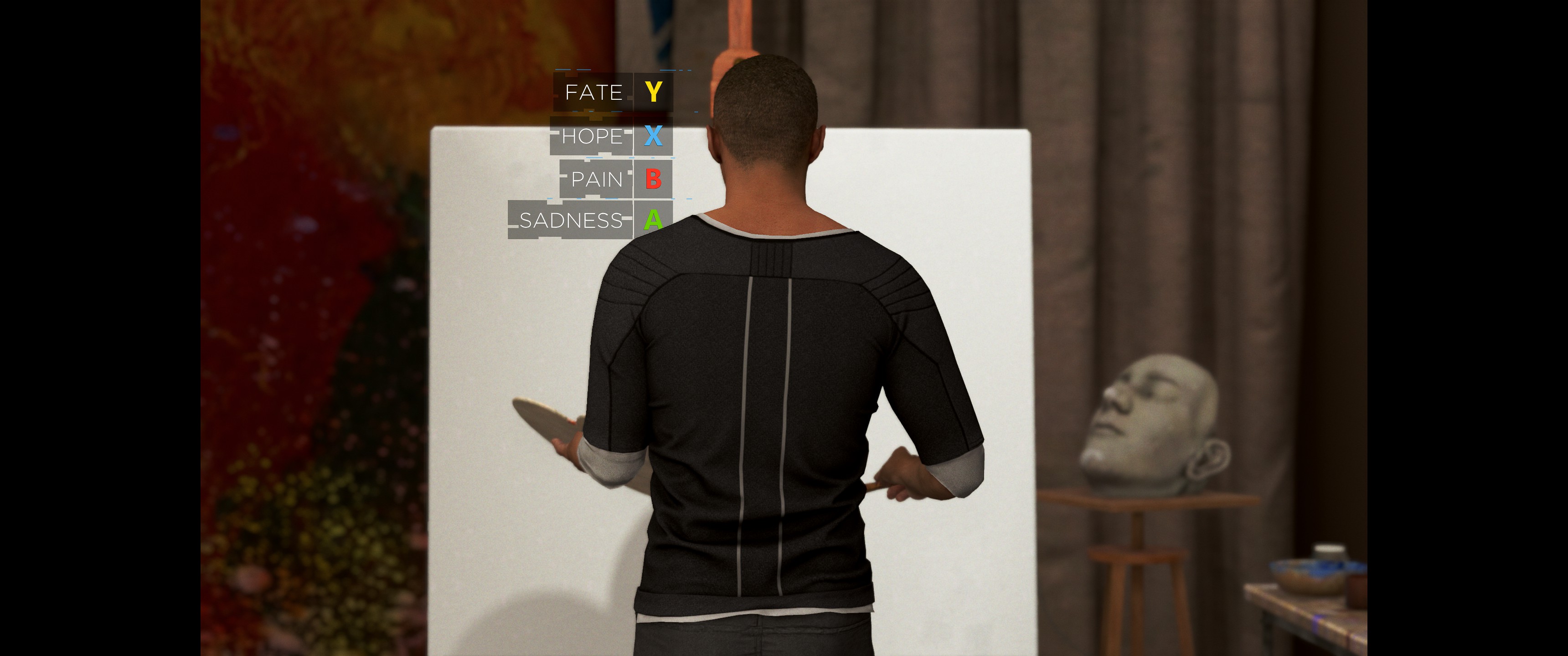
This is pretty annoying because, with the DS4, I was able to use the Gyro and the Trackpad to do certain actions but and the LED color was reflecting the stress level of the android but, with the DS, it only uses the analog sticks and the buttons use the XBox naming convention.
Is this a known bug or do I have another misconfiguration somewhere?
System Info:
https://gist.github.com/leinardi/b1f2a314b383f88c45b146881b317e81
EDIT
I did some more testing and I found out that Heavy Rain and Beyond: Two Souls both have an Official Configuration by Quantic Dream, while Detroid: Becoming Human doesn't have it.
It seems to me strange that Quantic Dream updated the config for the PS5 DS just for HR and B:TS and not for D:BH. Could it be a misconfiguration on Steam side?
Hello @xDShot, @leinardi, follow up issues should be reported separately if they haven't been already, and issues with games run with Proton should be mentioned on their compatibility report on the Proton issue tracker.
Closing because the original issue reported here appears to be resolved.
I'm on the latest steam beta client, have the udev rules loaded yet pressing cross on the identify button doesn't make it vibrate, and changing LED colour still doesn't work for me.
What could possibly be wrong? Thanks.
Edit: I'm retarded - it works. Make sure "Playstation configuration Support" is checked. Mine was set to xbox for some reason.
Your system information
Please describe your issue in as much detail as possible:
Today's beta update added support for the DualSense's gyro, LED, rumble features, but doesn't seem to work on my end. I was told by one of the employees at Valve, "you have to update your udev rules to allow steam to do feature/output reports to the device over USB."
So, I'm not exactly sure how to go about doing this. I'm aware udev rules are located in
/lib/udev/rules.d, but I'm not sure if there's an existing file that I need to modify or add a new one.Steps for reproducing this issue: